 Reef Tone
The underwater color correction app for divers
Restore the colors of your dive footage. Made for GoPro, DJI and underwater cameras.

- iPhone
- No account, nothing uploaded
- Free to try

 BeforeAfter
Drag the slider to compare original and corrected footage. All shots: Hurghada, Red Sea, Egypt.
How it works
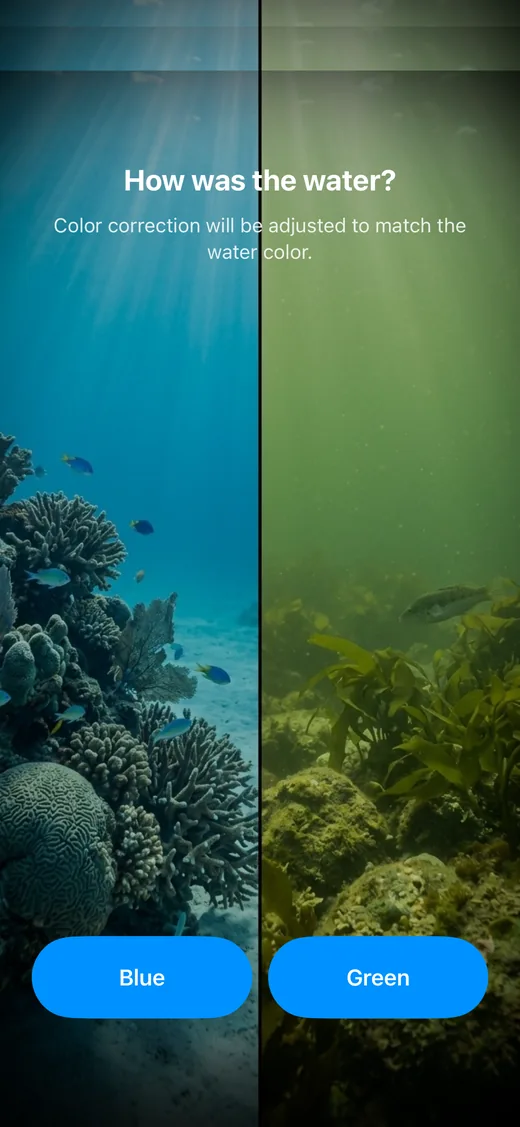
1Choose the water
Blue or green: tell Reef Tone what the water looked like.
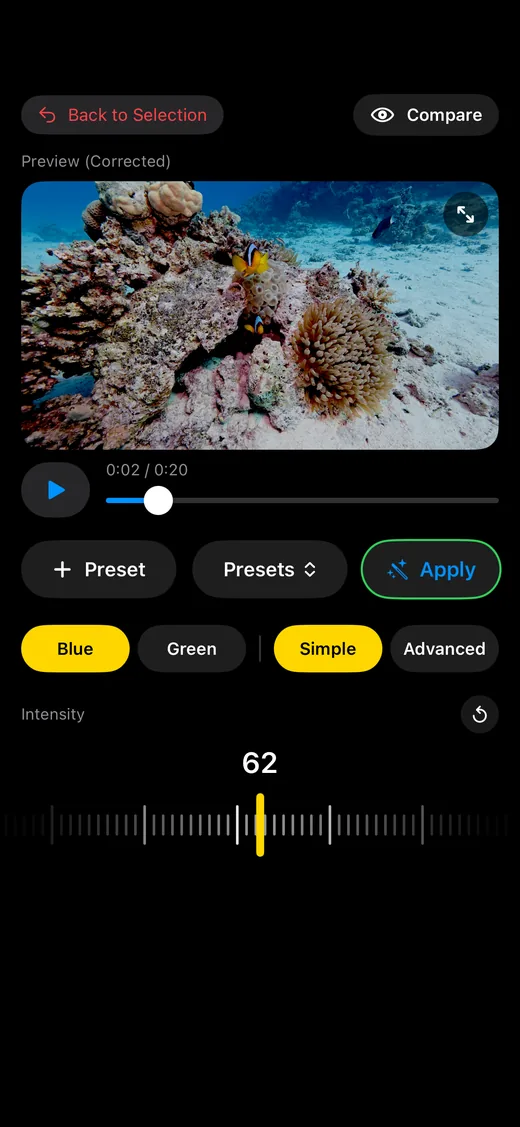
2Set the intensity
Simple mode needs one slider. Compare with the original before you save.
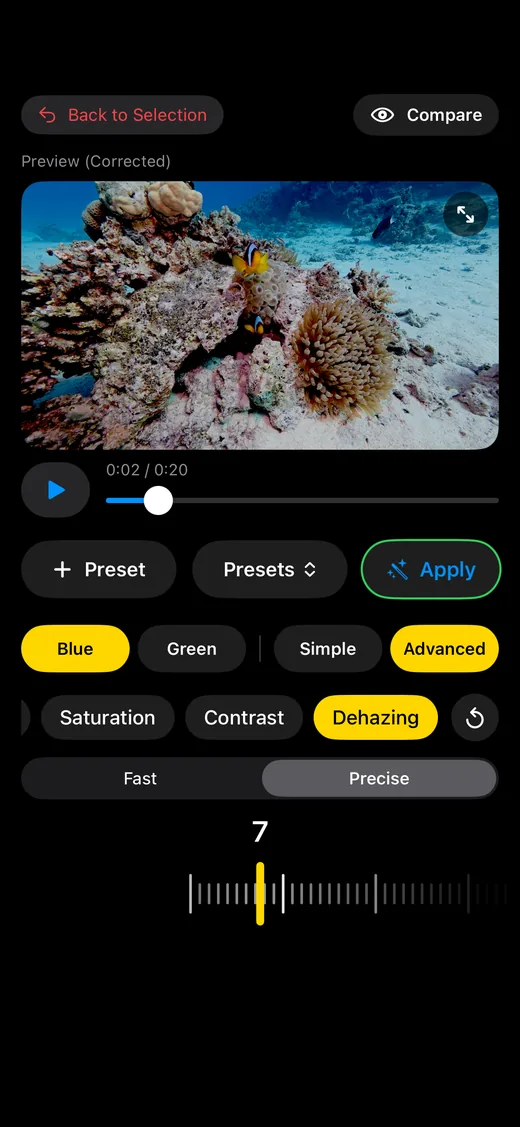
3Fine-tune if you like
Advanced mode adds more controls such as saturation, contrast and dehazing.
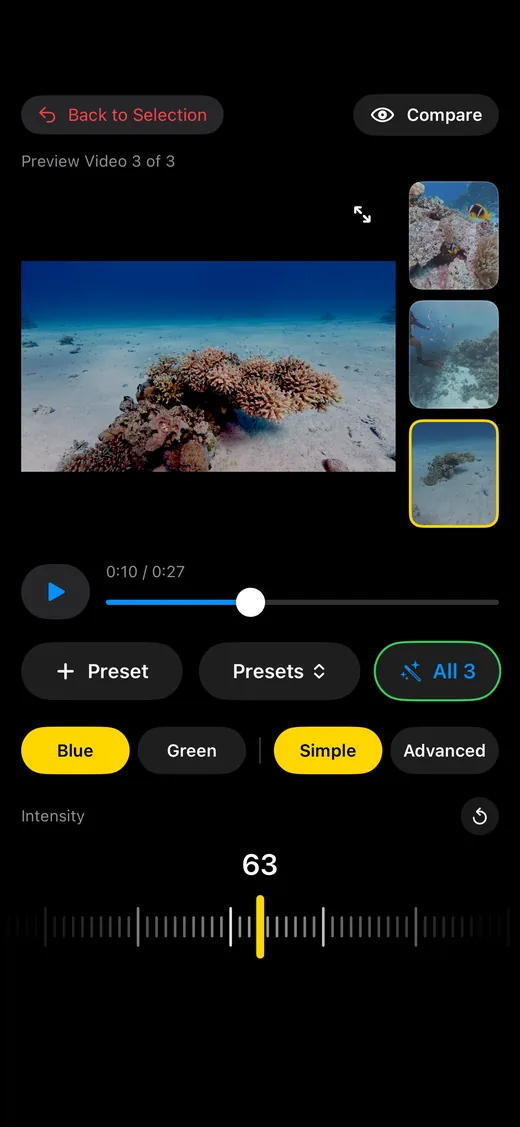
4One clip or manyPro
Process a single video or a whole batch at once.
Why your footage turns blue
Water absorbs light color by color. The warm colors disappear first, so deeper footage shifts to blue-green. Reef Tone puts them back.
- Red about 5 m
- Orange about 10 m
- Yellow about 20 m
- Green and blue reach deepest
Approximate values. The exact depths depend on water clarity.
Read the underwater color correction guide · How to fix green water
Underwater video color correction on your iPhone
Water absorbs red first, so footage turns blue-green. Reef Tone brings the colors back.
Blue or green water
Tell the app what the water looked like so the correction matches your dive.
Adjustable intensity
Fine-tune the correction and compare original and result before you save.
Presets
Save the water color and your current values as a preset and reuse them.
Built for underwater video
Import videos from Photos or Files, then save the result to Photos or Files. Photos work too.
Private by design
Everything is processed on your device. No upload, no account.
Precise dehazingPro
Physically based underwater dehaze for hazy footage.
Batch processingPro
Process up to 10 videos at once.
How Reef Tone compares
Typical ways to fix underwater footage, side by side.
| Reef Tone | Photo filters | Desktop editors | |
|---|---|---|---|
| Made for underwater color | ✓ | – | Some |
| Works on your iPhone | ✓ | ✓ | – |
| Blue or green water setting | ✓ | – | – |
| One slider for a quick result | ✓ | ✓ | – |
| Dehaze, saturation, contrast | ✓ | Some | ✓ |
| Before/after comparison | ✓ | Some | ✓ |
| Batch processing | ✓Pro | – | Some |
| No account, nothing uploaded | ✓ | Some | ✓ |
General comparison of typical approaches. Features vary between apps.
Supported cameras
Reef Tone works with any video material you can import to your iPhone, whether it comes from a GoPro, a DJI, an Insta360, your iPhone or any other underwater camera. You can import and export videos shot on your iPhone or on an Insta360 just like any other footage. It has been tested with footage from DJI cameras.
Frequently asked questions
How do I fix blue underwater footage?
Import your video, choose blue or green water, adjust the intensity and check the result with the before/after comparison. Water absorbs red light first, which is why untreated footage looks blue-green; Reef Tone compensates for that.
Is there color correction for DJI/Insta360/GoPro/iPhone?
Yes. Reef Tone works with any video material you import from Photos or Files, so it is not tied to one camera. It has been tested with footage from DJI cameras. DJI Osmo Action guide. GoPro guide.
Does Reef Tone upload my videos?
No. Photos and videos are processed on your device. There is no upload and no account.
Can I correct photos as well as videos?
Reef Tone is designed primarily for underwater video, but you can import photos too. The result is saved to your photo library or Files only when you choose to save it.
Is Reef Tone free?
The free version is limited in the number of videos you can export. Reef Tone Pro unlocks unlimited videos, precise dehazing and batch processing, as a subscription or a one-time purchase. Current prices are shown in the App Store.
Why does my underwater footage look blue or green?
Water absorbs light color by color. Red disappears first (after about 5 m), then orange and yellow, so deeper footage shifts toward blue and green. Reef Tone compensates for the colors that were lost.
How do I correct green water?
Choose Green when the water looked green. Reef Tone then adapts the correction to green water. You can fine-tune the intensity and check the result with the before/after comparison before you save. Read the guide.
Can I correct several videos at once?
Yes. Reef Tone Pro lets you process up to 10 videos at once with batch processing.